Visuals Library
Contents: Adding Visuals · Browsing · Selecting and Moving · Tags · Editing a Visual
The Visuals Library holds every visual and template available to your compositions, organized into folders. Open it with the purple button at the top of the window. Visuals in the library are references to files on your computer: removing a visual from the library does not delete the original file. Deleting the original file will prevent Vizloom from loading it.
Adding Visuals
- Drag and drop videos (
.mp4,.mov,.webm), GIFs, images or image-sequence folders onto the library to import them into the folder you have open. Drop them on a folder tile, or on a folder in the tree view, to import them into that folder instead. - Use the Add media button in the toolbar to pick files from your computer.
- Template archives (
.vzlm) are imported into the folder you have open. See Sharing Templates. - You can pick tags for the visuals you are about to import, right in the import dialog.
Note: You can also drop a single file onto a visual picker in the Rack or in the nodes editors: Vizloom imports it and assigns it to that picker in one go.
Browsing the Library
The toolbar under the library's header has everything you need to find your way around:
- Search (
Ctrl/Cmd + F,Escapeto clear) matches names and tag names, the type and tag filters narrow the grid, and Sort orders it by Recently used, Time added, Name or Kind, in either direction. - After typing in the search box, press arrow-down to start navigating the tiles via keyboard, and if you are accessing the library to apply a visual or template to the composition, press Enter to confirm your selection.
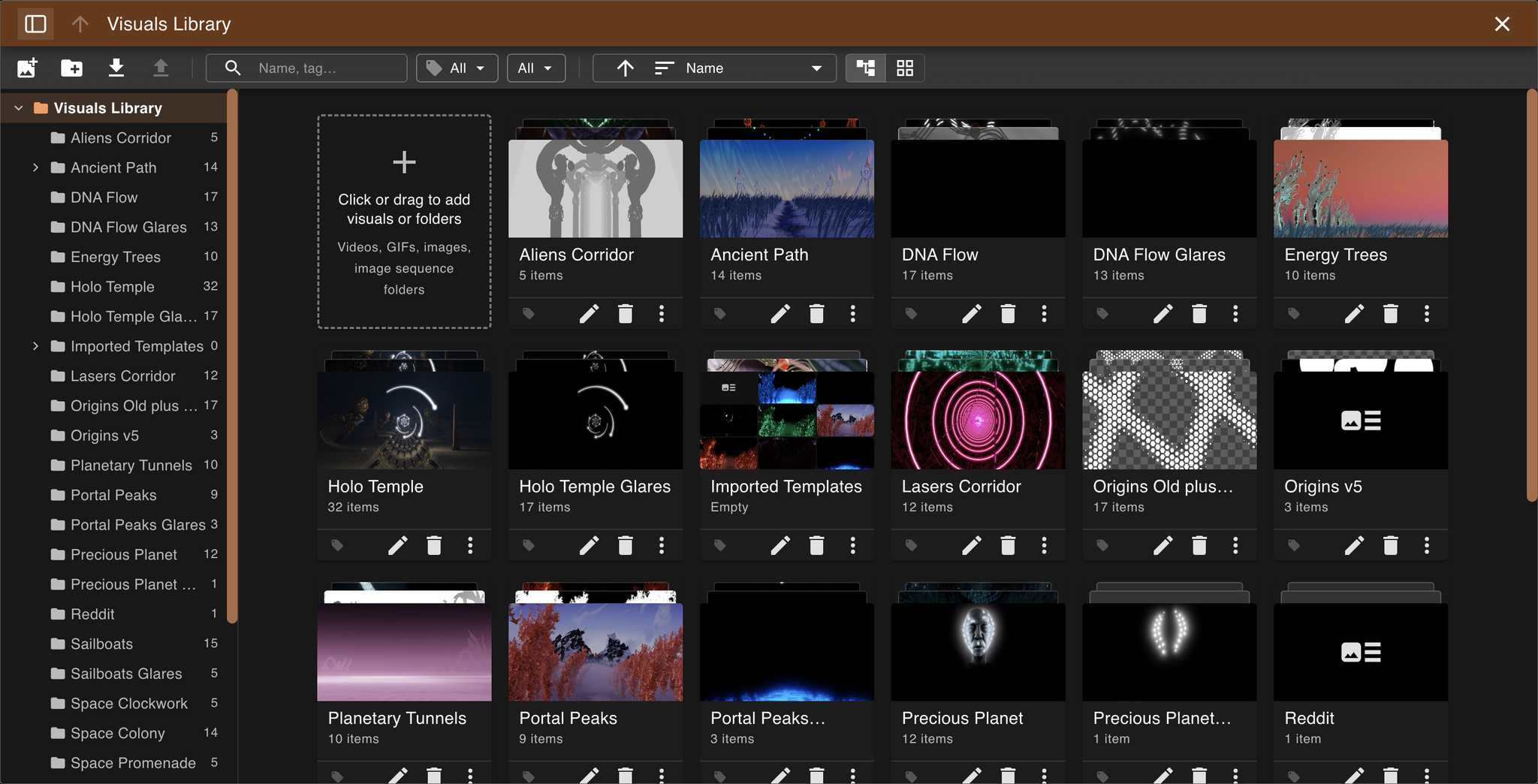
- The Folders / All items switch toggles between browsing folder by folder and a flat view listing every visual and template inside the current folder and its sub-folders, each captioned with its folder path. Searching or filtering switches to the flat view automatically; you can switch back if you prefer. In the flat view, Go to Folder on an item's menu opens the folder it lives in.
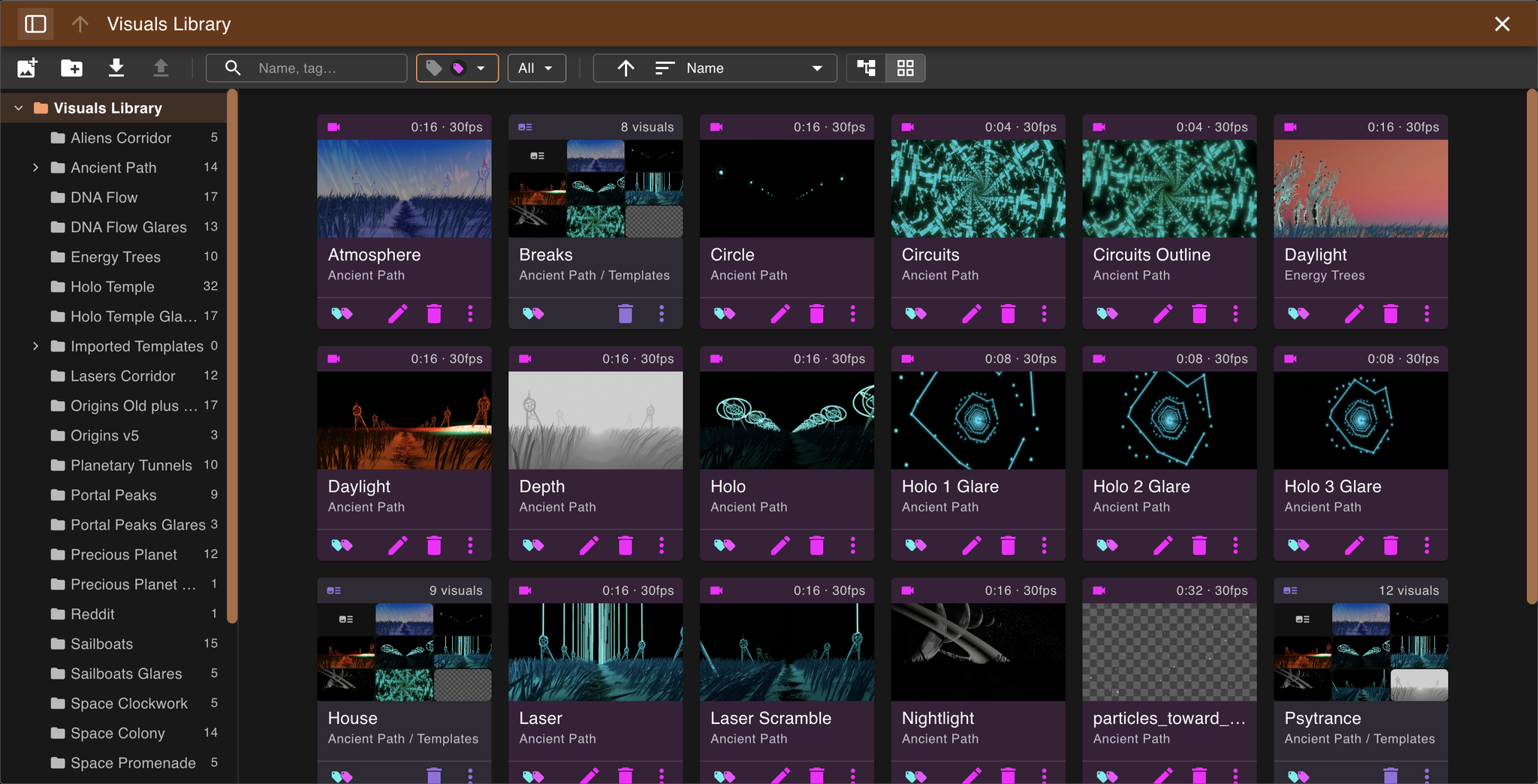
The flat view, filtered by a tag. Each tile shows the folder it lives in; templates show a mosaic of the visuals they use.
Each tile is color-coded by type. Folder tiles show what's inside them: hover one and use its arrows to flip through its visuals, templates and sub-folders, and the one you stop on becomes the folder's thumbnail.
The button in the library's header hides or shows the tree view. The up-arrow next to the folder path opens the parent folder, as does Cmd + ↑ on macOS or Alt + ↑ on Windows.
Note: Deleting visuals can affect compositions that use them, so Vizloom warns you when a deletion includes visuals. Templates are copied into compositions when applied, so deleting a template never affects existing compositions.
Tags
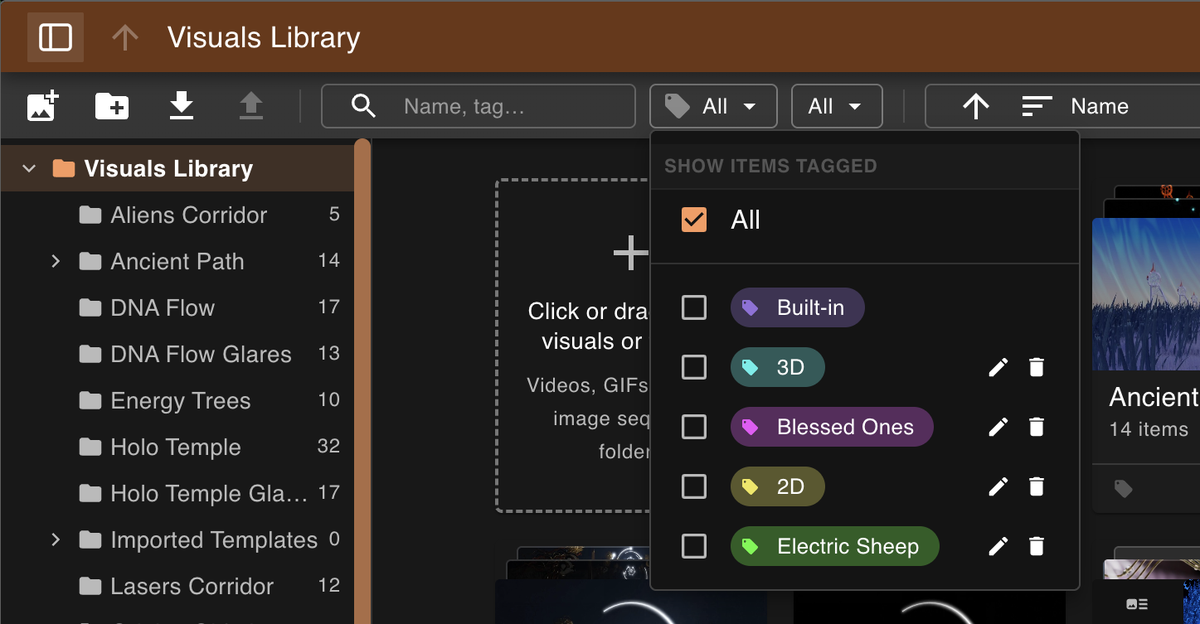
Tags are a library-wide set of colored labels you can put on visuals, templates and folders, alongside the folder structure.
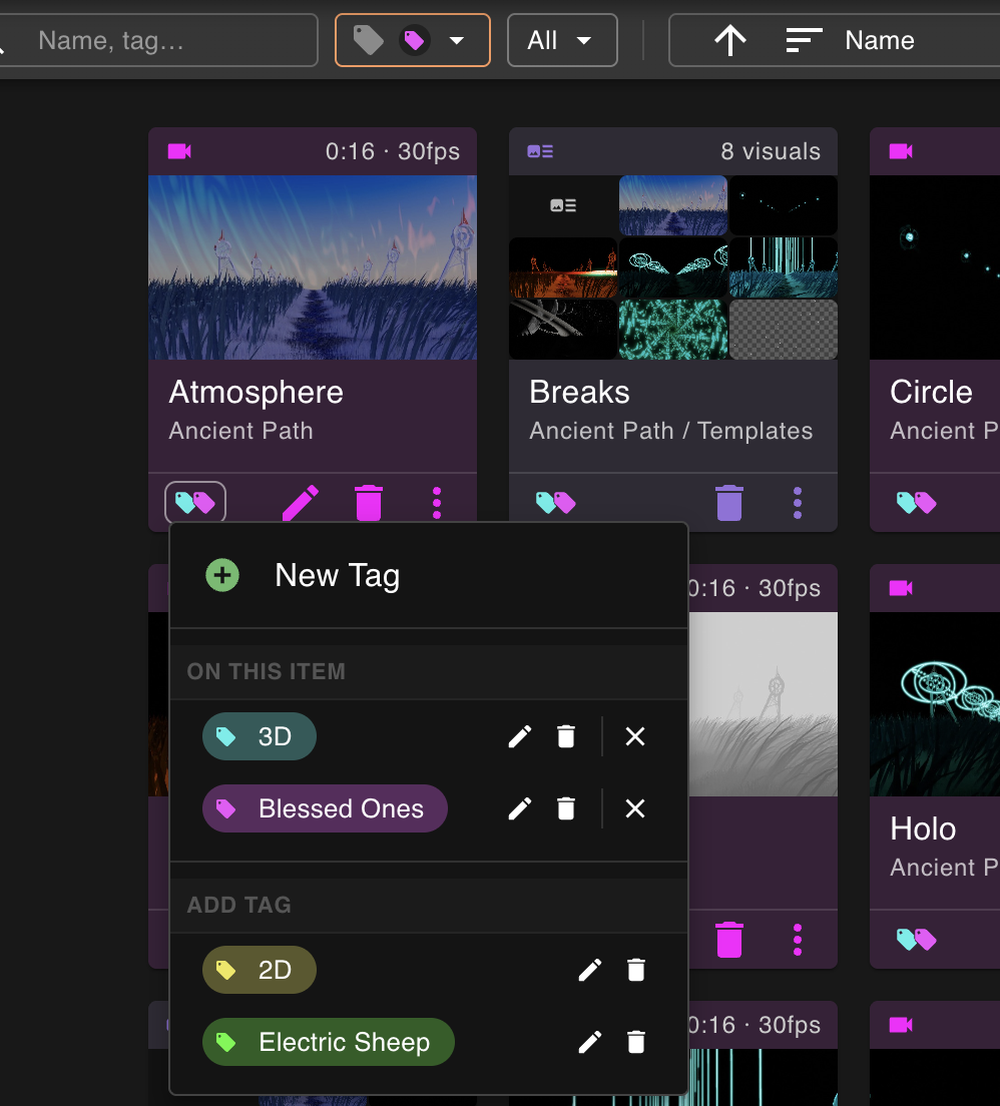
- Click the tags widget on a tile to open its tag menu: create a New Tag, add, remove, rename, recolor existing tags.
- Select several items and use the toolbar's Tag button to tag them all at once.
- Use the tag filter in the toolbar, or type a tag's name in the search, to find tagged items. Visual pickers in the Rack and nodes editors match tag names too.
- The templates that ship with Vizloom carry a fixed Built-in tag, which can't be edited or removed.