
Rack Groups
Contents: Grouping Tracks · How Groups Combine Tracks
Large racks are easier to manage when related tracks are grouped together. Groups also change how their tracks are combined with the rest of the rack, both visually and in how they affect each other.
Grouping Tracks
Select some tracks and press Ctrl/Cmd + G (or right-click → Group Tracks) to put them in a group, and give it a name. Select a group and press Ctrl/Cmd + Shift + G (or right-click → Ungroup) to release its tracks again.
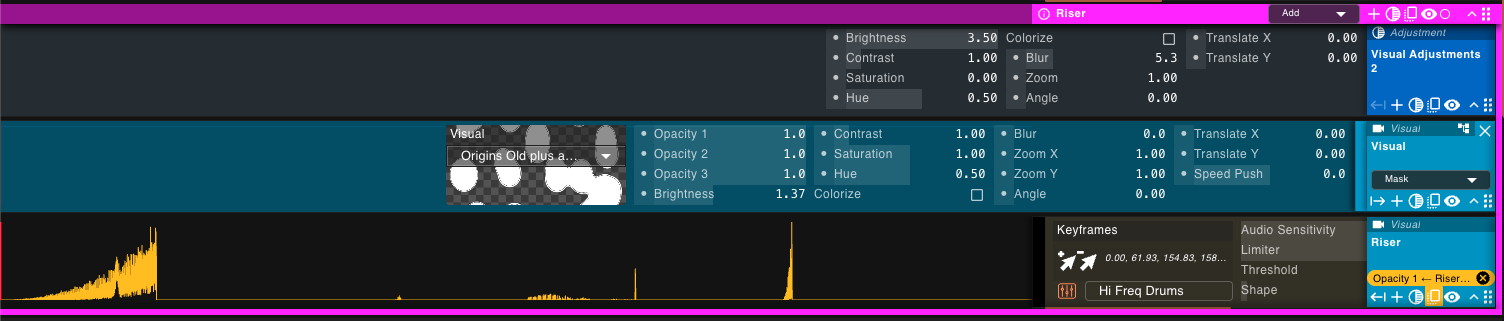
The "Riser" group: its header runs across the rack, with the group's blend mode and controls on the right, and its colored frame holds the group's tracks. The first of them is an adjustment layer, which only affects the tracks below it within the group.
- A group's header has controls much like a collapsed track's.
- Collapsing a group folds its tracks into its header, which then shows a miniature of the charts of its first tracks.
- Dragging the header moves the whole group. Drop a track inside a group to add it to the group, or drag it out to take it out.
Alt-clicking a group's eye icon will show only the group's tracks in the preview.- Each new group gets a color of its own, so neighboring groups are easy to tell apart, but you can change it via the circle button in its header.
How Groups Combine Tracks
- Visuals: the visual tracks of a group are blended together first, and the result is then blended onto what's below the group with the group's own blend mode. Just like layer groups in image editors.
- Dependencies: tracks inside a group see the tracks above the group, but what they set stays inside it. For example, a Song Structure track inside a group only affects the tracks after it in the same group. See Tracks Order Matters for how tracks influence each other, and use the dependency highlighting toggle to check: selecting a group highlights its tracks and what they affect.
- Adjustment layers: an adjustment layer inside a group only affects the group's tracks below it, which makes groups the easiest way to apply an effect to specific tracks.