
Building Custom Effects
Contents: Nodes Groups · Any Node as a Track Type · Adjustment Layers
Once you know how tracks and nodes work together (see Tracks and Nodes), the nodes editors let you package what you build into reusable effects: pack a node graph into a single nodes group, and turn any node or group into a track or an adjustment layer (a filter / effect) in one step.
Nodes Groups
As node trees grow, recurring patterns can be packed into nodes groups: a single node standing for a whole sub-graph, with its own inputs and outputs.
- Grouping: select some nodes and press
Ctrl/Cmd + G. The selected nodes move into a new group, maintaining their connections. - Opening a group: double-click a group node to step inside it. Use the breadcrumb at the top to navigate up and down levels. Inside a group, the Group Input and Group Output nodes define its interface, just like the Input and Output nodes of a track type, and it can be fully customized.
- Reusing: copies of a group node all point at the same group, so editing it changes every copy. The breadcrumb shows how many uses the group has, and its Clone button turns the one you are in into an independent copy.
- Ungrouping: select a group node and press
Ctrl/Cmd + Shift + G(or right-click → Ungroup) to spread its nodes back into the graph.
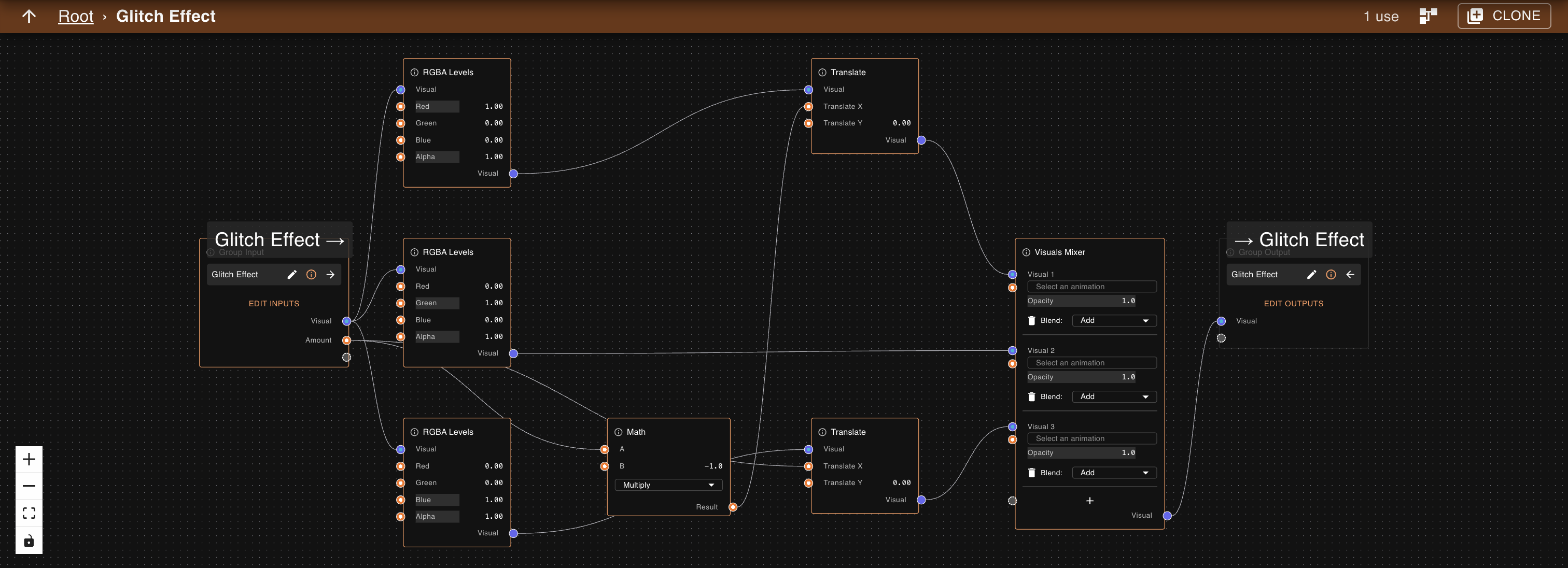
Inside the "Glitch Effect" group, built from the RGBA Levels, Math, Translate and Visuals Mixer nodes. Outside, all of this is a single node with a Visual and an Amount input.
Importing Groups from Templates
Import Group…, at the top of the add node menu and in the right-click menu, opens the Visuals Library to pick groups from any template: open a template to see the groups it holds, then select the ones you need to bring a copy of each into the editor.
Vizloom ships a built-in Basic Group Nodes template with ready-made groups for commonly seen patterns, and these are listed directly within the Add Node menu, under Groups. New ones keep getting added, so check them out from time to time for utilities that might speed up your workflow!
Any Node as a Track Type
You don't always need to wire Input and Output nodes by hand. Select a node (or a group node) and choose Expose as Track Type from the right-click menu: Vizloom wraps it in a new track type with some sensible defaults, ready to be used in the rack.
The same is available from the Rack, without opening the nodes editors: Add Track → From Nodes…. Yes, this means any node with some inputs and outputs also doubles as a type of track automatically.
Adjustment Layers
Any node that describes a visual effect can double as a filter in the rack if exposed as an adjustment layer. Expose as Adjustment Layer in the editor's right-click menu (or Add Node as Adjustment Layer… in the Rack's) turns any node or group that takes a visual and outputs one into such a track type in one step.
What makes a track type an adjustment layer is a Visuals Below Track input on its Input node: wire it into the nodes that should process the visuals below, and the result into the Output node.
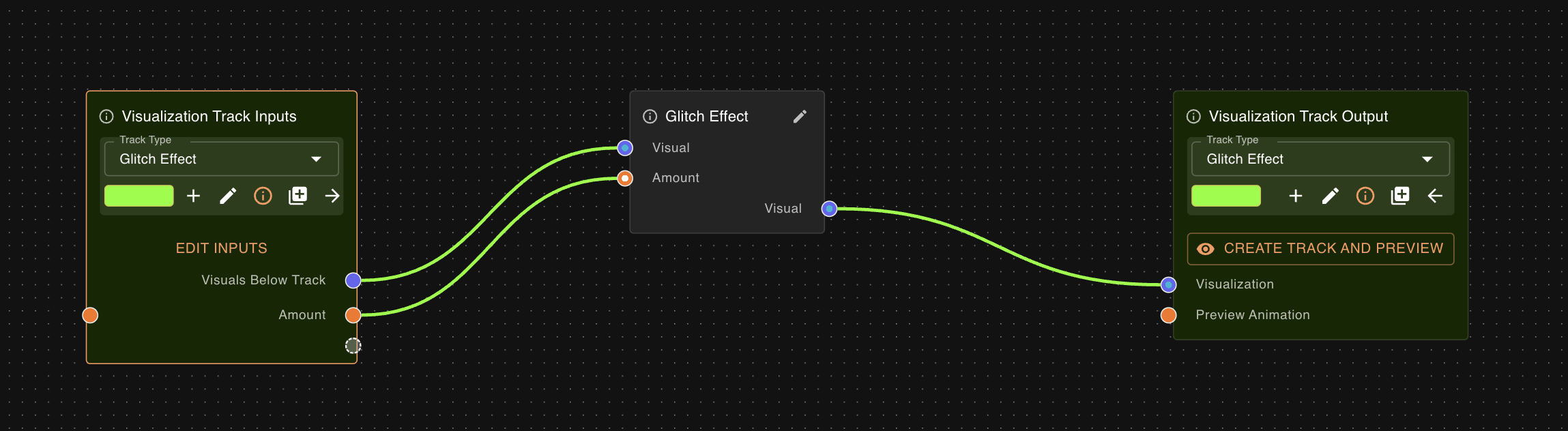
An adjustment layer applying the "Glitch Effect" group to everything below it. The Amount input becomes a control on the track in the Rack.
What's Next?
- Explore the Nodes Guide for every node you can build effects from.
- See Rack Groups and Adjustment Layers in the Rack View guide, for how these effects are used on the tracks of a composition.
- Save your effects in a template, so their groups can be imported into your other templates.